|
FLOWER BASKET
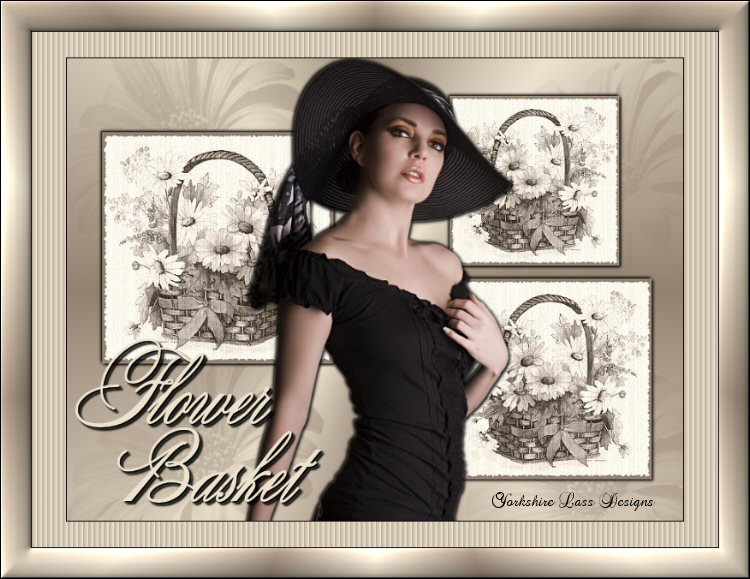
This tutorial is my own design and any resemblance to any other tutorial is purely coincidental.
© 2010 Yorkshire Lass Designs in PSP. All Rights Reserved.
It was created in Paint Shop Pro 8, but can be realised in other versions.
However, some tool descriptions and locations may vary, but the overall result
should be the same.
My thanks to all the artists and other creators, known and unknown to me,
who have
inspired this tutorial and whose work I have used.
You will need the following to complete this tutorial:
PSP Brushes
yp_daisy_brush
yp_flowerbasket02_brush
Open in PSP and export them as Custom Brushes
Tubes
jet-woman25-november-2007
yp_wordart_flowerbasket
Open and minimise in your PSP workspace
The above can be downloaded here

Plugins
Filters Unlimited 2.0
Available from PSP Designers Studio
Download and extract to your Plugins folder
******************
Drag this arrow with you to mark your place in the tutorial
Drag and Drop Script from Dynamic Drive

*****************
INSTRUCTIONS
Open a new canvas 400 x 400 pixels background white
Layers >> Promote Background Layer
In the Materials Palette load Black #000000 into Background
Select Paint Brush Tool
Find brush tip yp_flowerbasket02_brush

Position brush in centre of canvas
Click right mouse button once
Effects >> Plugins >> I.C.NET Software >> Filters Unlimited 2.0
Special Effects 1 >> Aged Film
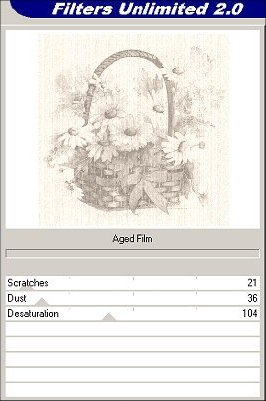
Click Apply
In the Materials Palette load background with #918170
Effects >> Plugins >> I.C.NET Software >> Filters Unlimited 2.0 >>
Edges, Square >> Square Edge 17
Use Background Color unchecked
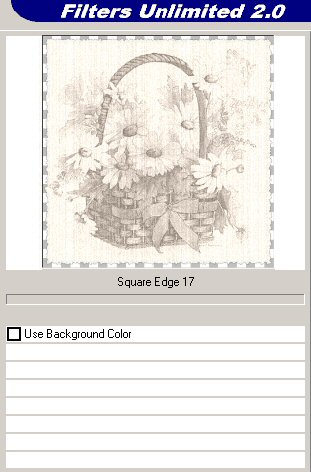
Click Apply
Layers >> New Raster Layer
Flood fill with background colour
Layers >> Arrange >> Move Down
Layers >> Merge >> Merge Visible
This is what you should have now
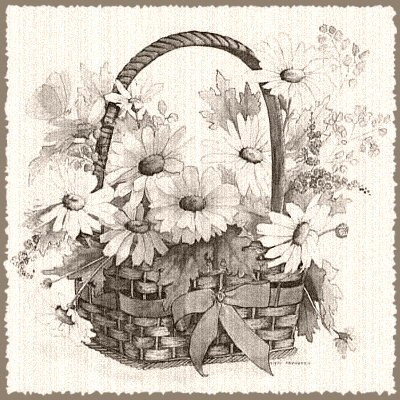
Save as a PSP image
I saved mine as flower_basket01.pspimage
Minimise
Open a new canvas 800 x 600 pixels background white
Layers >> Promote Background Layer
Layers >> New Raster Layer
In the Materials Palette
Load #EDE2CD Beige into Foreground
Make a Foreground-Background gradient
Style = Radial
with the following settings
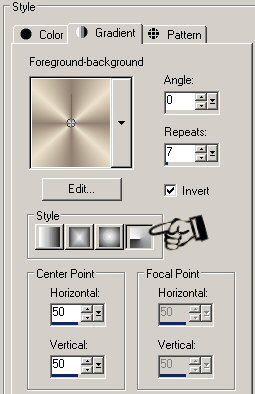
Flood fill canvas with gradient
Maximise flower_basket01
Edit >> Copy
Edit >> Paste >> Paste as New Layer on working canvas
Image >> Resize 75%
Resize All Layers unchecked
Adjust >> Sharpness >> Sharpen
Image >> Mirror
With the Move Tool re-position so that top left-hand corner is at the
co-ordinates x:50 y:100 (refer to status bar at bottom of screen)
Effects >> 3D Effects >> Drop Shadow
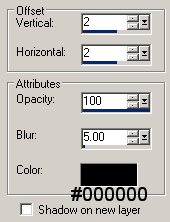
Click OK
Effects >> 3D Effects >> Drop Shadow
Change Vertical and Horizontal Offsets to -2 (minus 2)
flower_basket01.pspimage should still be on your clipboard
Edit >> Paste >> Paste as New Layer on working canvas
Image >> Resize 65%
Resize All Layers unchecked
Adjust >> Sharpness >> Sharpen
With the Move Tool re-position so that top left-hand corner is at the
co-ordinates x:500 y:290
Effects >> 3D Effects >> Drop Shadow
Click OK
Effects >> 3D Effects >> Drop Shadow
Change Vertical and Horizontal Offsets to -2 (minus 2)
flower_basket01.pspimage should still be on your clipboard
Edit >> Paste >> Paste as New Layer on working canvas
Image >> Resize 55%
Resize All Layers unchecked
Adjust >> Sharpness >> Sharpen
With the Move Tool re-position so that top left-hand corner is at the
co-ordinates x:500 y:50
Effects >> 3D Effects >> Drop Shadow
Click OK
Effects >> 3D Effects >> Drop Shadow
Change Vertical and Horizontal Offsets to -2 (minus 2)
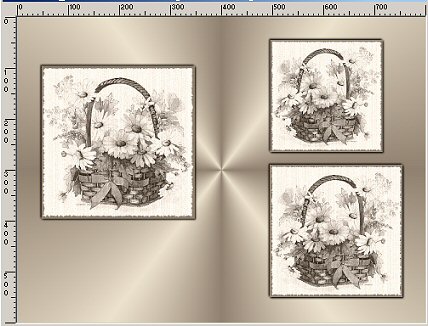
This is what you should have now
Maximise jet-women25-november-2007
Edit >> Copy
Edit >> Paste >> Paste as New Layer on working canvas
Image >> Resize 90%
Resize All Layers unchecked
Adjust >> Sharpness >> Sharpen
With the Move Tool move down slightly (see finished image for placement)
Effects >> 3D Effects >> Drop Shadow
Click OK
Effects >> 3D Effects >> Drop Shadow
Change Vertical and Horizontal Offsets to -2 (minus 2)
In the Layers Palette highlight Raster 2
Layers >> new Raster Layer
Select Paint Brush tool
Change brush tip to yp_daisy_brush

Position brush where desired
Click right mouse button once
Re-position brush as many times as desired clicking right mouse button once each time
Layers >> Merge >> Merge All (Flatten)
Image >> Add Borders
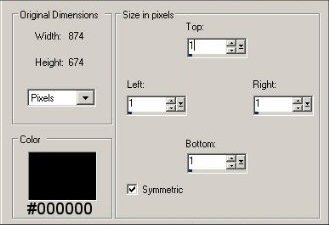
Click OK
Layers >> Promote Background Layer
In the Materials Palette change Foreground to Colour #EDE2CD
Layers >> New Raster Layer
Flood fill layer with #EDE2CD
Effects >> Texture Effects >> Blinds
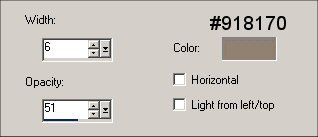
Click OK
Layers >> Arrange >> Send to Bottom
In the Layers Palette highlight Raster 1
Image >> resize 90%
Resize All Layers unchecked
Layers >> Merge >> Merge All (Flatten)
Image >> Add Borders
Click OK
Image >> Add Borders
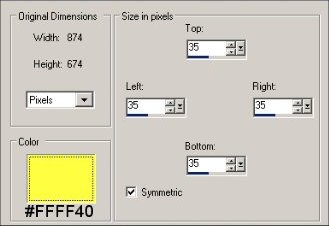
Click OK
In the Materials Palette change the Foreground Style back to Gradient
Change Repeats to 13
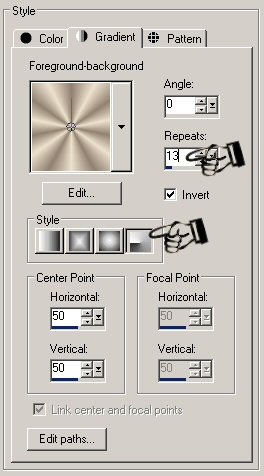
With the Magic Wand select the yellow border
Flood fill with Gradient
Effects >> 3D Effects >> Inner Bevel
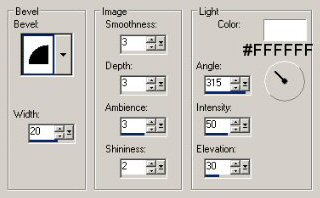
Click OK
Selections >> Select None
Image >> Add Borders
Click OK
Maximise yp_wordart_flowerbasket
Edit >> Copy
Edit >> Paste >> Paste as New Layer
With the Move Tool place in bottom left-hand corner
Add your name and/or watermark
Layers >> Merge >> Merge All (Flatten)
Resize if desired
Save as a jpg
I hope you enjoyed this tutorial
If you have any questions or would like to show me your result
EMAIL ME
VERSIONS FROM MY TRANSLATORS
Thank you Isabella, Sognografic Web Design (Italy)

|