|
ZODIAC
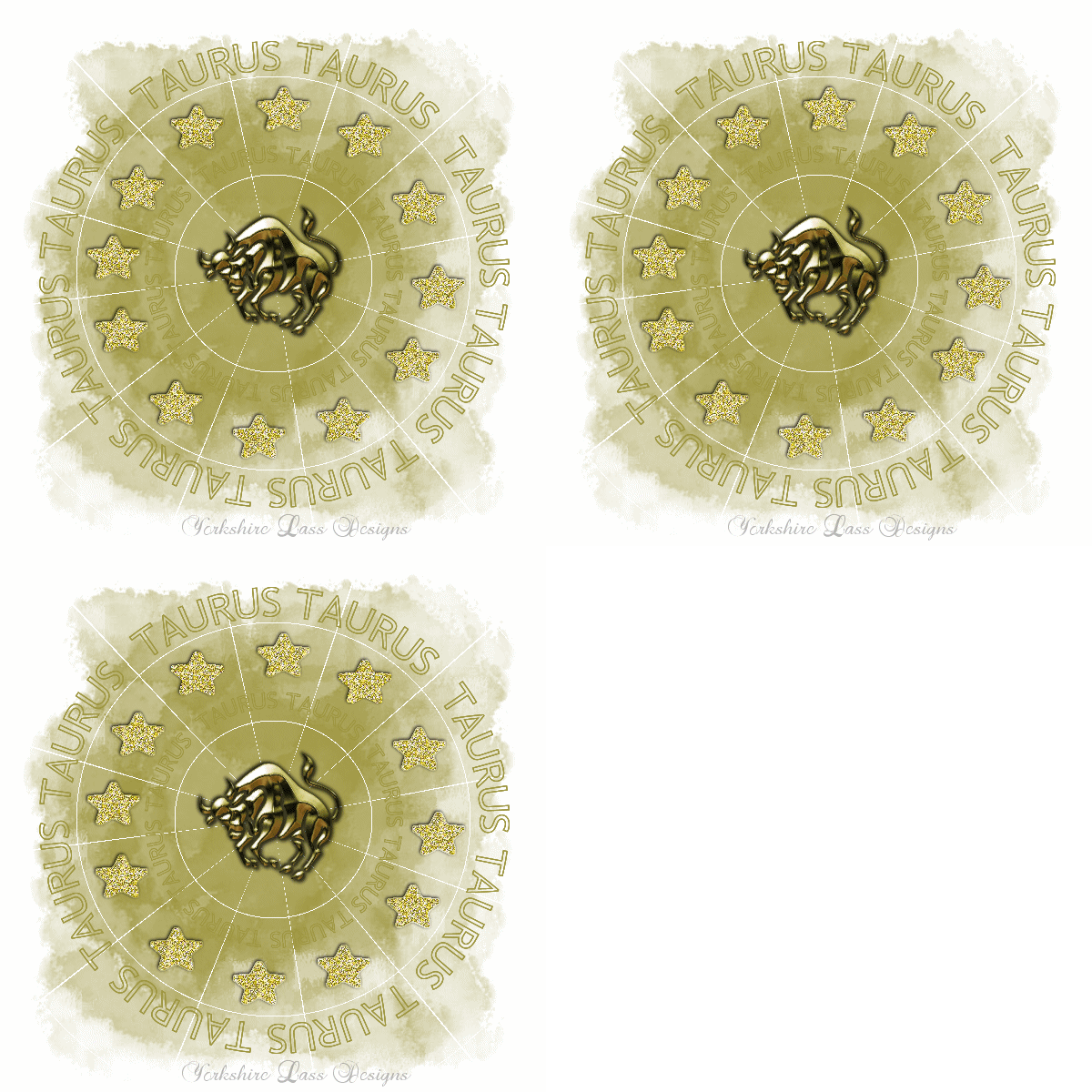
This tutorial is my own design and any resemblance to any other tutorial is purely coincidental.
© 2009 Yorkshire Lass Designs in PSP. All Rights Reserved.
It was created in Paint Shop Pro 8, but can be realised in other versions.
However, some tool descriptions and locations may vary, but the overall result
should be the same.
You will also need Animation Shop.
My thanks to all the artists and other creators, known and unknown to me,
who have
inspired this tutorial and whose work I have used.
You will need the following to complete this tutorial:
Tubes, Mask and Glitter
taurus.psp from birgittasplace.com (site inactive)
yp_star-ring.psp
Becky Mask022.jpg
Winni glitter gold-4.gif from Winni's Designs
The above can be downloaded
HERE
Download and extract to a file on your computer.
Open tubes and mask in PSP and minimise.
Leave glitter in the file untouched for now.
Plugins
Unplugged Tools - Star Chart
Available here
PSP Designer Studio
Download and extract to your Plugins folder
***********
Drag this arrow with you to mark your place in the tutorial
Drag and Drop Script from Dynamic Drive

**********
INSTRUCTIONS
STEP 1
Open new canvas 600x 600 pixels white
Layers >> Promote Background Layer
View >> Rulers
STEP 2
In the Materials Palette load Foreground with Gold #9F9741
Layers >> New Raster Layer
Flood fill layer with Foreground colour
STEP 3
Layers >> New Mask Layer >> From Image
Select becky mask022 from the drop down list
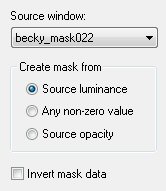
Layers >> Merge >> Merge Group
STEP 4
Effects >> Plugins >> UnPlugged Tools >> Starchart
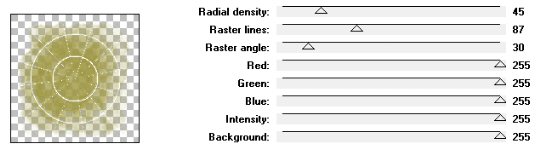
STEP 5
Select the Preset Shape Tool and choose Ellipse from the shapes list

Starting at 80 pixels across and 80 pixels down
Draw out a circle a little larger than the outer circle
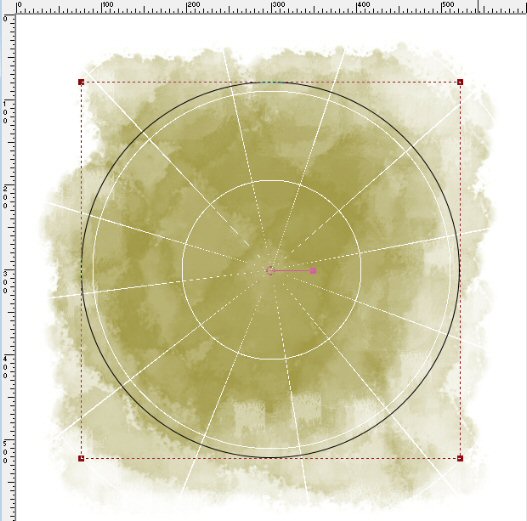
Selections >> Select None
STEP 6
In the Materials Palette load Foreground with Gold #9F9741
and make the Background null
Select the Text Tool with the following settings

Place the cursor over the circle, when it changes to an A with a curve under it left click
Type TAURUS in the text box until the circle is complete
I typed TAURUS with a space between each word then added an extra space
between some of the words until the text was even around the circle.
If you are using a zodiac sign other than Taurus, you will need to play with the word spacing.
Selections >> Select None
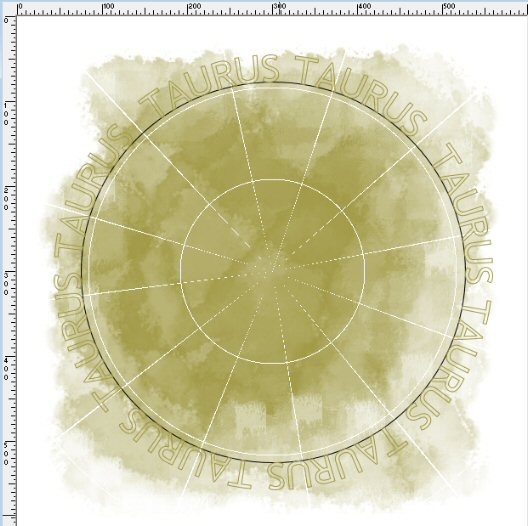
This is what you should have now
STEP 7
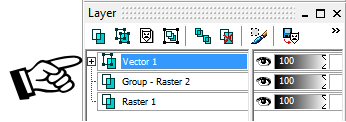
In the Layers Palette click on the plus sign
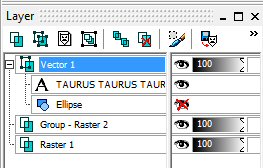
Click on the eye to make the ellipse invisible
Layers >> Convert to Raster Layer
STEP 8
Layers >> Duplicate
Layers >> Merge >> Merge Down
Layers >> Duplicate
Image >> Resize 55%
Resize All Layers unchecked
STEP 9
Layers >> Duplicate
Layers >> Merge >> Merge Down
STEP 10
Maximise tube taurus.psp
Edit >> Copy
Minimise tube
Edit >> Paste >> Paste as New Layer
STEP 11
Effects >> 3D Effects >> Drop Shadow
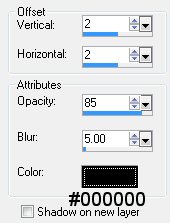
Repeat drop shadow changing the Vertical and Horizontal Offsets to minus 2 (-2)
STEP 12
Layers >> New Raster Layer
Add your name and/or watermark
Layers >> Merge >> Merge All Visible
STEP 13
Maximise tube yp_star-ring.psp
Edit >> Copy
Minimise tube
Edit >> Paste>> Paste as New Layer
Adjust position if necessary
NOW TO ANIMATE THE STARS
STEP 14
File >> Jasc Software Products >> Launch Animation Shop
Open winni.glitter.gold.4.gif
Edit >> Select All
Edit >> Copy
STEP 15
Over to Paint Shop Pro
Edit >> Paste >> AS Animation as Multiple Images
You should now have 3 separate glitter images
I re-named these images winni-glitter-gold-4-1.jpg, winni-glitter-gold-4-2.jpg
and winni-glitter-gold-4-3.jpg
STEP 16
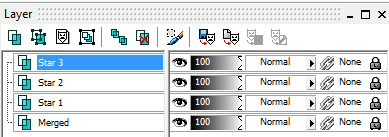
We need 3 star layers to match the number of glitter images
In the Layer Palette highlight Raster 4 (the star layer)
Layers >> Duplicate twice
Re-name these layers Star 1, Star 2 and Star 3
STEP 17
In the Layer Palette highlight Star 1 and hide Star 2 and Star 3
With the Magic Wand

and holding down the shift key select all the stars
In the Materials Palette change the Foreground Style to Pattern
Load winni-glitter-gold-4-1 from the selection of patterns
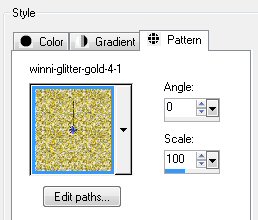
Select the Floodfill Tool and apply Foreground pattern to all the stars
Do not de-select
Effects >> 3D Effects >> Drop Shadow
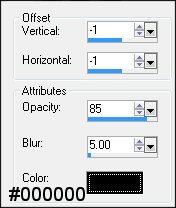
Do not de-select
STEP 18
In the Layer Palette open and highlight Star 2 and hide Star 1 and Star 3
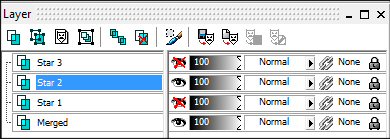
Load Foreground with winni-glitter-gold-4-2
Select the Floodfill Tool and apply Foreground pattern to all the stars
Apply Drop Shadow as in STEP 16
Do not de-select
STEP 19
In the Layer Palette open and highlight Star 3 and hide Star 1 and Star 2
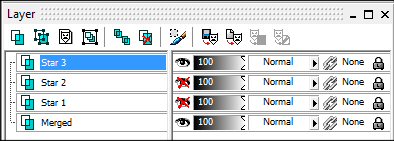
Load Foreground with winni-glitter-gold-4-3
Select the Floodfill Tool and apply Foreground pattern to all the stars
Apply Drop Shadow as in STEP 16
Selections >> Select None
STEP 20
Still working in the Layer Palette
Highlight Star 1
Hide Star 3 and Star 2
Edit >> Copy Merged
Over to Animation Shop
Edit >> Paste >> As New Animation
Return to Paint Shop Pro
STEP 21
Open and highlight Star 2
Hide Star 1 and Star 3
Edit >> Copy Merged
Over to Animation Shop
Edit >> Paste >> After Current Frame
Return to Paint Shop Pro
STEP 22
Open and highlight Star 3
Hide Star 1 and Star 2
Edit >> Copy Merged
Over to Animation Shop
Edit >> Paste >> After Current Frame
STEP 23
View >> Animation
STEP 24
Save as a gif and we're done
Here is another example
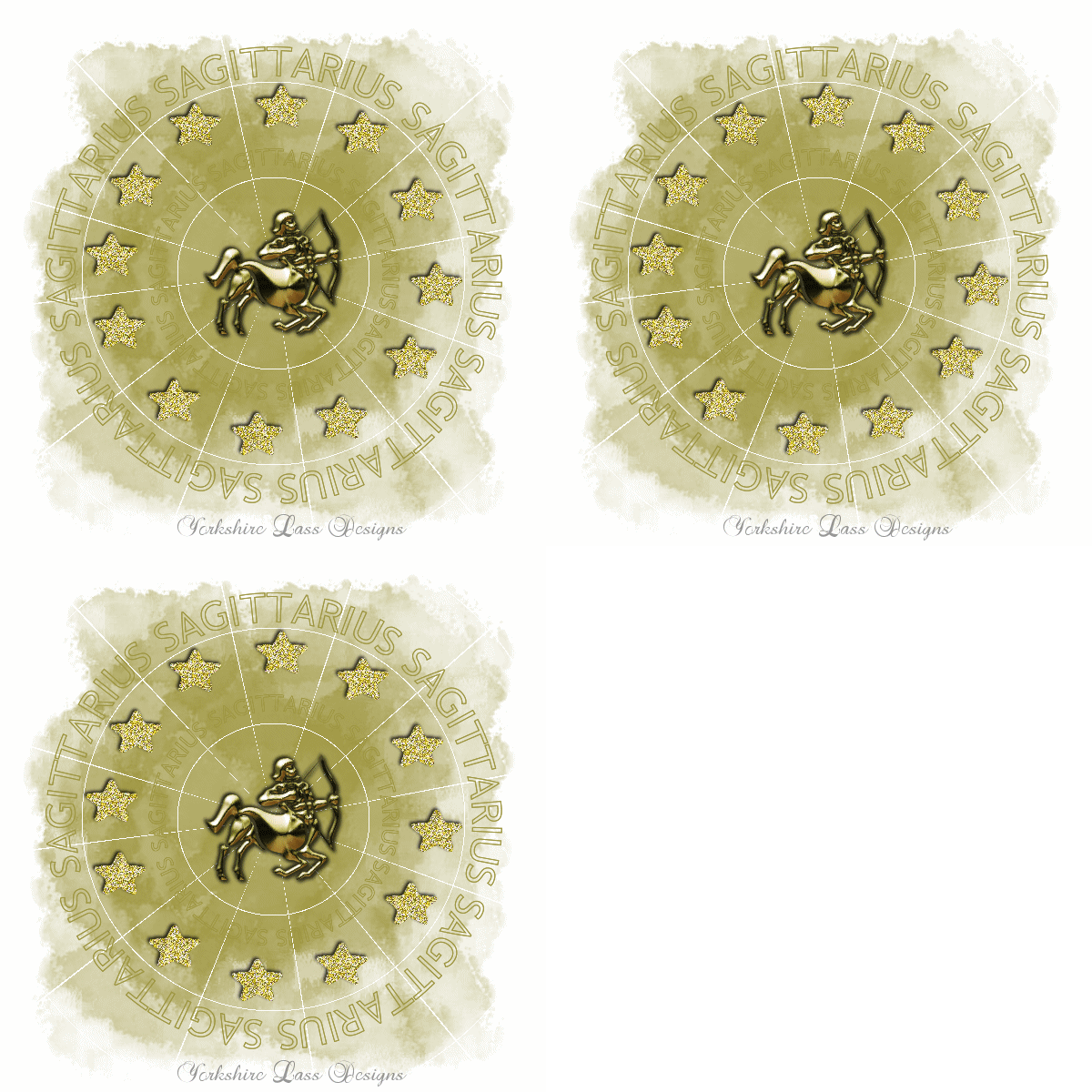
I hope you enjoyed this tutorial.
If you have any questions or would like to show me your result
EMAIL ME
|